
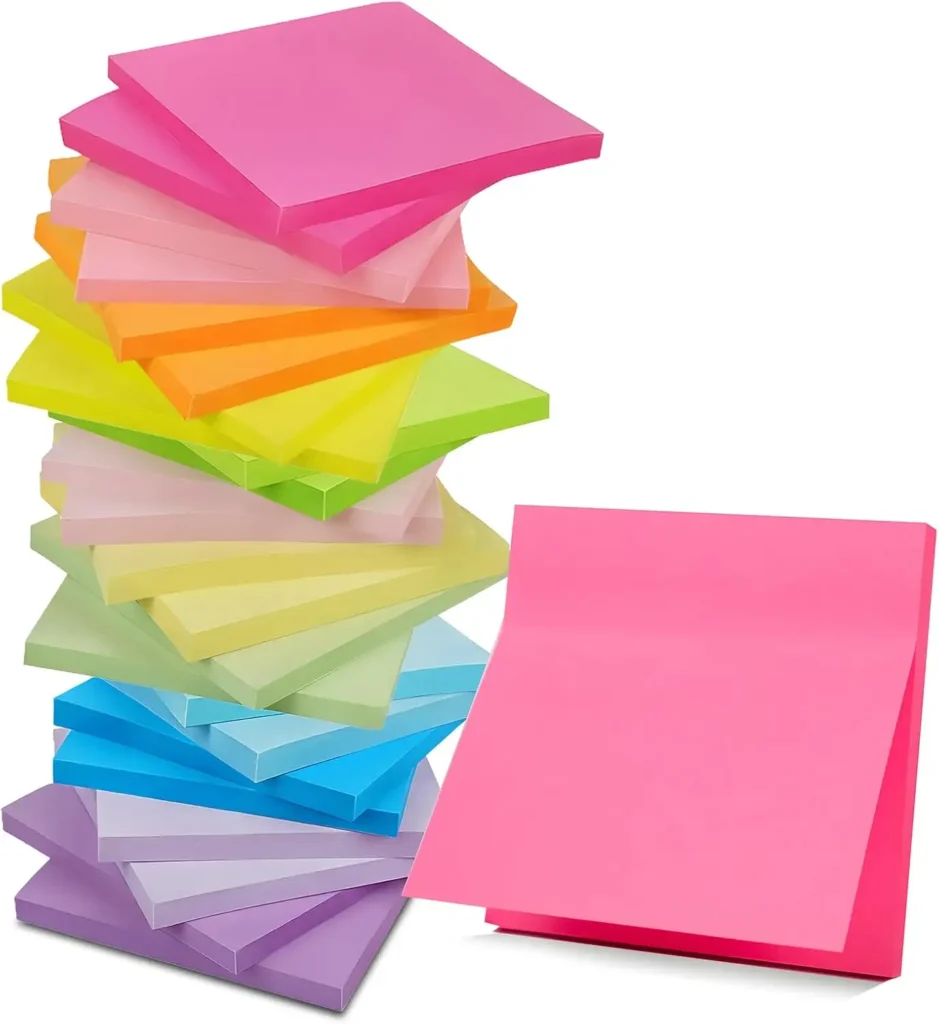
The 5 Best Digital Sticky Notes and Apps for Students (Organize Your Workflow)(Quick Review)
Are you tired of losing important reminders, to-do lists, and brilliant ideas amidst a sea of paper? For students, keeping track of classes, assignments, study sessions, and social life can be overwhelming. The good news is that the digital age offers a sophisticated, clutter-free solution: Smart Sticky Notes. These aren’t just simple text boxes; the best apps and tools on the market are designed to organize your entire workflow, sync across all your devices, and even integrate with other productivity suites.
In this comprehensive quick review, we break down the top 5 digital sticky note solutions. Whether you’re looking for a simple, cross-platform reminder tool or a robust, feature-rich app to handle complex project management for group work, we have the perfect recommendation to help you finally master your academic schedule and keep your focus sharp.
🚀 The Top 5 Smart Sticky Notes and Digital Solutions for Students
We evaluated dozens of apps based on criteria critical to student success: ease of use, cross-device syncing, integration capabilities, and cost. Here are our top five picks:
1. Microsoft OneNote (The Top Pick)
Microsoft OneNote stands out as the ultimate digital notebook, perfect for students who need more than just a quick sticky note. It functions as a flexible canvas where you can type, handwrite (with a stylus), draw, clip web content, and organize everything into hierarchical notebooks, sections, and pages. Its robust tagging feature makes it easy to create “sticky note” style reminders and find them later.
| Pros | Cons |
| Deep Integration: Seamlessly works with Microsoft 365 (Word, Outlook, Teams). | Steep Learning Curve: Overwhelming for users who just want simple sticky notes. |
| Incredible Flexibility: Supports text, audio, video, and stylus handwriting. | Sync Issues: Can occasionally be slow to sync large notebooks across devices. |
| Free Access: Basic features are free; often included with university accounts. | Interface: The desktop app can feel slightly cluttered compared to simpler tools. |
2. Simplenote (The Budget Pick)
As its name implies, Simplenote is the ideal choice for students who value speed and simplicity above all else. It’s a cross-platform (iOS, Android, Mac, Windows, Linux) note-taking app that prioritizes text-based notes and lists. It’s lightning-fast, uses a clean, minimalist interface, and is completely free. It excels at quick capture—jotting down a phone number, a reading list, or a sudden idea—making it the quintessential digital sticky note.
| Pros | Cons |
| Completely Free: No paywall for core features. | Text-Only Focus: Lacks robust formatting, image, or audio support. |
| Lightning-Fast Syncing: Reliable and instant sync across all platforms. | Minimal Features: Not suitable for heavy-duty project or research management. |
| Cross-Platform: Available on virtually every operating system. | Search: While fast, the tagging system is basic compared to rivals. |
3. Google Keep (Best for Quick Capture and Integration)
Google Keep is the most visually accurate digital counterpart to the physical sticky note. It organizes notes, checklists, and drawings into small, colorful cards that are easy to view and rearrange on a single dashboard. It ties directly into your Google ecosystem, allowing you to quickly set location-based reminders (“Remind me to print the assignment when I get to the library”) and pull notes directly into Google Docs.
| Pros | Cons |
| Familiar Interface: Highly visual, colorful, and easy to use. | Note Limits: Notes are relatively small; not ideal for writing long papers. |
| Powerful Reminders: Time and location-based reminders are incredibly useful for students. | Organization: The tag system can get messy with a high volume of notes. |
| Google Ecosystem: Seamless integration with Gmail, Calendar, and Docs. | Formatting: Basic formatting options (no advanced typography). |
4. Milanote (Best for Visual and Creative Projects)
Milanote isn’t a sticky note app; it’s a creative workspace that uses a digital whiteboard canvas. You can drag and drop text notes, images, links, color swatches, and files onto the board and organize them spatially. For art, design, film, or architecture students, it’s the perfect tool for creating mood boards, storyboards, and visually mapping out complex projects. It replaces the need for a physical corkboard full of paper and pushpins.
| Pros | Cons |
| Visual Mapping: Excellent for organizing ideas spatially and creatively. | Pricing: Free tier is limited to 100 cards; requires a subscription for unlimited use. |
| Intuitive Interface: Very easy to learn; feels natural for creative minds. | Overkill: Too complex and visual for simple to-do lists or class reminders. |
| Template Library: Pre-made templates for storyboards, mood boards, etc. | Offline Access: Requires an internet connection for full functionality. |
5. Bear (Best for Mac/iOS Users & Focused Writing)
Bear is a beautiful, streamlined note-taking app designed exclusively for Apple users (Mac, iPhone, iPad). It uses a powerful, elegant Markdown editor for fast formatting and emphasizes a clean writing experience. Notes are organized using an intuitive hashtag system, making it easy to turn a quick “sticky note” into a more polished piece of writing. Its aesthetic appeal and dedicated focus on the Apple ecosystem make it a student favorite.
| Pros | Cons |
| Elegant Design: Beautiful, distraction-free interface ideal for focused study. | Apple Exclusive: Not available on Windows or Android, limiting cross-device use. |
| Markdown Editor: Fast and efficient way to format notes without touching the mouse. | Subscription Required: Syncing and premium themes require a low-cost subscription. |
| Tagging System: Simple, hierarchical organization using hashtags. | No Web Clipper: Doesn’t have a robust browser extension for clipping content. |
🧠 Buyer’s Guide: Choosing the Right Smart Sticky Notes App
Selecting the right digital tool is a personal choice that depends entirely on your study habits and tech ecosystem. Use this buyer’s guide to narrow down the perfect solution for you:
1. What is Your Primary Tech Ecosystem?
- Microsoft/PC User: If you rely on Windows and use Outlook or Microsoft Word, Microsoft OneNote is the clear choice due to its superior integration and compatibility.
- Google/Android User: If your school uses Google Workspace, and you check Gmail and Google Calendar constantly, Google Keep will fit seamlessly into your existing workflow.
- Apple/Mac User: If you live on your MacBook and iPhone, the dedicated design and focus of Bear will offer the best native experience.
- Cross-Platform/Minimalist: If you frequently switch between devices or use Linux, the simplicity and universality of Simplenote is your best bet.
2. How Do You Process Information?
- Text-Based/Linear Thinker: If you prefer simple lists, plain text, and typing, opt for Simplenote or Google Keep.
- Visual/Creative Thinker: If you need to see relationships between ideas, use diagrams, or create mood boards, Milanote is the only real option.
- Comprehensive/Hierarchical Thinker: If you take copious notes, need deep organization, and like dividing subjects into separate sections, Microsoft OneNote offers the necessary structure.
3. Do You Need Offline Access?
Most apps offer some form of offline functionality, but their reliability varies. If you frequently study in areas with poor Wi-Fi (like a specific corner of the library or a basement study room):
- Apps like Microsoft OneNote and Bear typically store local copies of your notes, making them reliable offline tools.
- Tools that rely heavily on web-based features, such as Milanote, may have limited functionality without an internet connection.
4. What is Your Budget?
- Free (Essential Functionality): Simplenote is completely free. Google Keep is free with a Google account. OneNote is free for basic use. These are excellent choices for students on a tight budget.
- Subscription (Premium Features): Milanote and Bear require a monthly subscription to unlock their full potential (unlimited cards/notes and syncing, respectively). While affordable for students, factor this into your yearly costs.
5. What Kind of Reminders Do You Need?
- Time/Date: All 5 apps allow you to set time-based reminders (e.g., “Remind me at 3 PM to start studying”).
- Location: Google Keep is unmatched in setting location-based reminders. This feature is a game-changer for students who need prompts when they arrive at class, home, or the library.
🔑 Maximize Your Workflow with Digital Sticky Notes: Best Practices
Switching from physical paper notes to a digital system requires a change in habits. Follow these expert tips to ensure your new Smart Sticky Notes app truly optimizes your workflow:
A. The “Inbox” Method
Treat your chosen app as a central Inbox. When a thought, task, or item to buy pops into your head, capture it immediately in a note. Do not organize it yet. The goal is quick capture to clear your mind. Later, during a designated five-minute review period (e.g., before bed), you can tag the note, move it to the correct notebook, or turn it into a calendar event
“DISCLOSURE: This post contains affiliate links. If you make a purchase through one of our links, we may earn a commission at no extra cost to you.”